Verify It's Working
Walk through these steps before assuming something is broken.
Step 1: open your *arr instance's wanted pages
- Sonarr, Whisparr v2: Wanted -> Missing and Wanted -> Cutoff Unmet
- Radarr, Whisparr v3: check the movie library for missing or cutoff-unmet items
- Lidarr: Wanted -> Missing and Wanted -> Cutoff Unmet
- Readarr: Wanted -> Missing and Wanted -> Cutoff Unmet
If those pages are empty, Houndarr has nothing to search.
Step 2: compare items to Houndarr logs
Open Houndarr's Logs page and look at recent activity. Each row shows:
| Field | What it tells you |
|---|---|
| Action | searched (a search command was sent), skipped (item was ineligible this cycle), or error (something went wrong) |
| Reason | Why the item was skipped or what kind of search was triggered |
| Item label | The series, movie, album, or book title and relevant details |
| Timestamp | When the action occurred |
A counter strip above the table summarizes the loaded page, for
example rows 35 · cycles 8 · searched 7 · skip-only 10. Any
searched count above zero with no err:N above zero is a quick
confirmation the loop is running.
Searched rows for items that also appear in your *arr instance's wanted views mean Houndarr is working correctly.
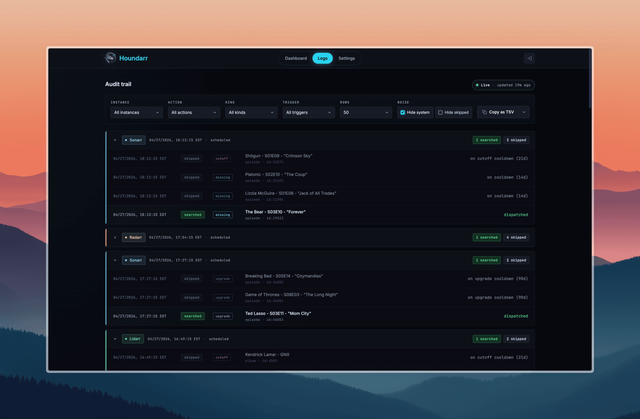
Log context fields
Each log row includes context fields that group and filter activity:
cycle_id: a unique ID shared by all rows from a single search cycle (both missing and cutoff passes). Use this to see everything that happened in one run.cycle_trigger: one ofscheduled(normal timer),run_now(manual button press), orsystem(supervisor lifecycle events like startup).search_kind:missing,cutoff, orupgradefor item-level rows; empty for system rows.
The Logs page groups rows by cycle when metadata exists and shows a
Cycle outcome indicator: searched (at least one item was
searched), skips only (all candidates were ineligible), or
unknown (no metadata). Use the Kind filter to narrow to
missing, cutoff, or upgrade rows.
System rows (supervisor startup messages) are hidden by default. The filter controls toggle them on.
Step 3: check "Last Searched" timestamps in your *arr instance
In your instance's cutoff-unmet view, each item shows when it was last searched. If those timestamps match recent Houndarr log entries, the search commands are reaching the instance and being executed.
Step 4: expect skips
If most of your log rows say skipped, read the reason string
against the Skip Reasons reference.
Cooldown, post-release grace, hot retry windows, hourly caps, queue backpressure,
and items already in the download queue are normal scheduling behavior. Errors are the signal that
something is wrong; skips are not.
Cooldown-reason rows are deduplicated so the log stays scannable even when hundreds of items are on cooldown. See Log deduplication for which reasons dedupe.
Step 5: check the error count
Many skipped entries, a few searched entries, and zero error
entries means Houndarr is connected and running correctly. Errors
mean something is wrong with the connection or API key; skips do
not.
When you see error rows, see
Troubleshoot Connection
for common fixes.
Why so few searches?
When everything looks correct and you still see only a handful of searches per day, the defaults (batch 2, hourly cap 4, cooldown 14 days) are pacing Houndarr at roughly 4 to 8 searches per day per instance. That pace is by design.
See Increase Throughput for the order of adjustments that raise the pace without earning an indexer ban.